
Translate any SDS
Choose a document and translate it into the supported language your organization needs.
Translate any SDS in your library into the languages your team needs. Translated SDSs are then available to employees directly in the employee portal alongside the rest of your active library.
Use the SDS Translations tools to translate any document manually. You can also create a location-based auto-translation rule so any SDS assigned to a particular location is automatically translated into the languages you select.
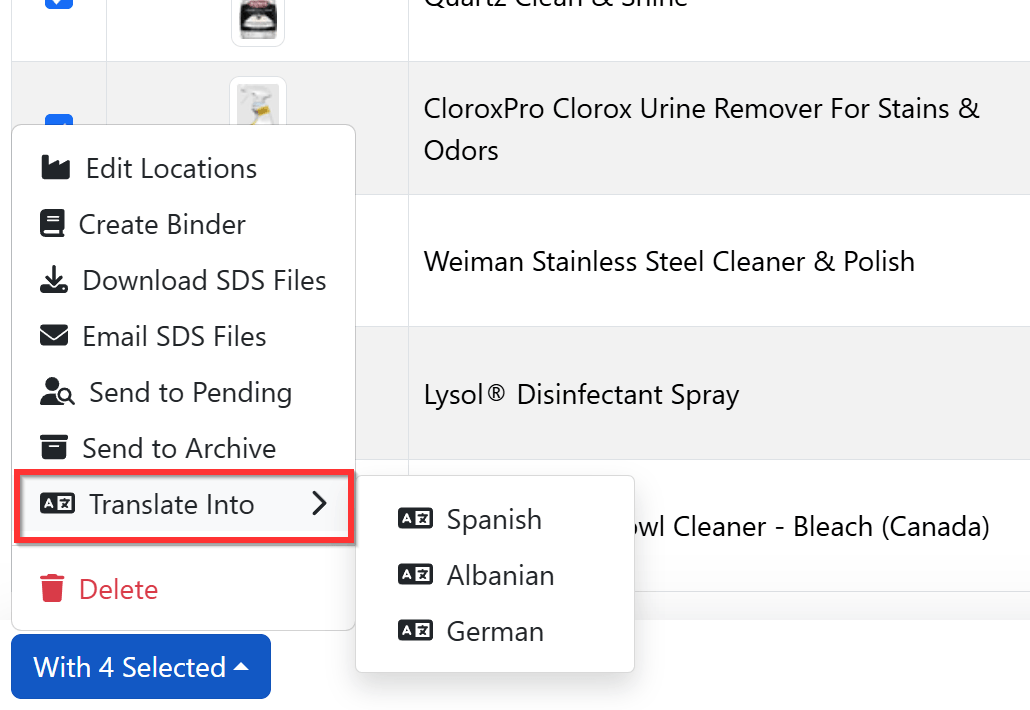
Choose the translation workflow that fits the job: translate a single SDS on demand, or set a rule that automatically translates documents assigned to a location. Employees can then open the translated version right in the portal.
Choose a document and translate it into the supported language your organization needs.
Employees can access translated SDS versions directly through the employee portal.
Create a rule that automatically translates any SDS when it is assigned to a particular location.