
Define the term
Create a Smart Tag with the content keywords that matter to your review, program or operational process.
Create standing SDS content searches using one or more keywords. Matching current and future SDSs are automatically tagged, then those tags become a focused filter across the library—with an email alert when a new product meets the tag’s criteria.
Smart Tags are managed from the Smart Tag window. Each tag searches SDS content for selected keywords, automatically applies to matching current and future documents, and shows the records where the tag applies along with the matched terms. Email notifications can alert you when a newly added product’s SDS meets a tag’s criteria.
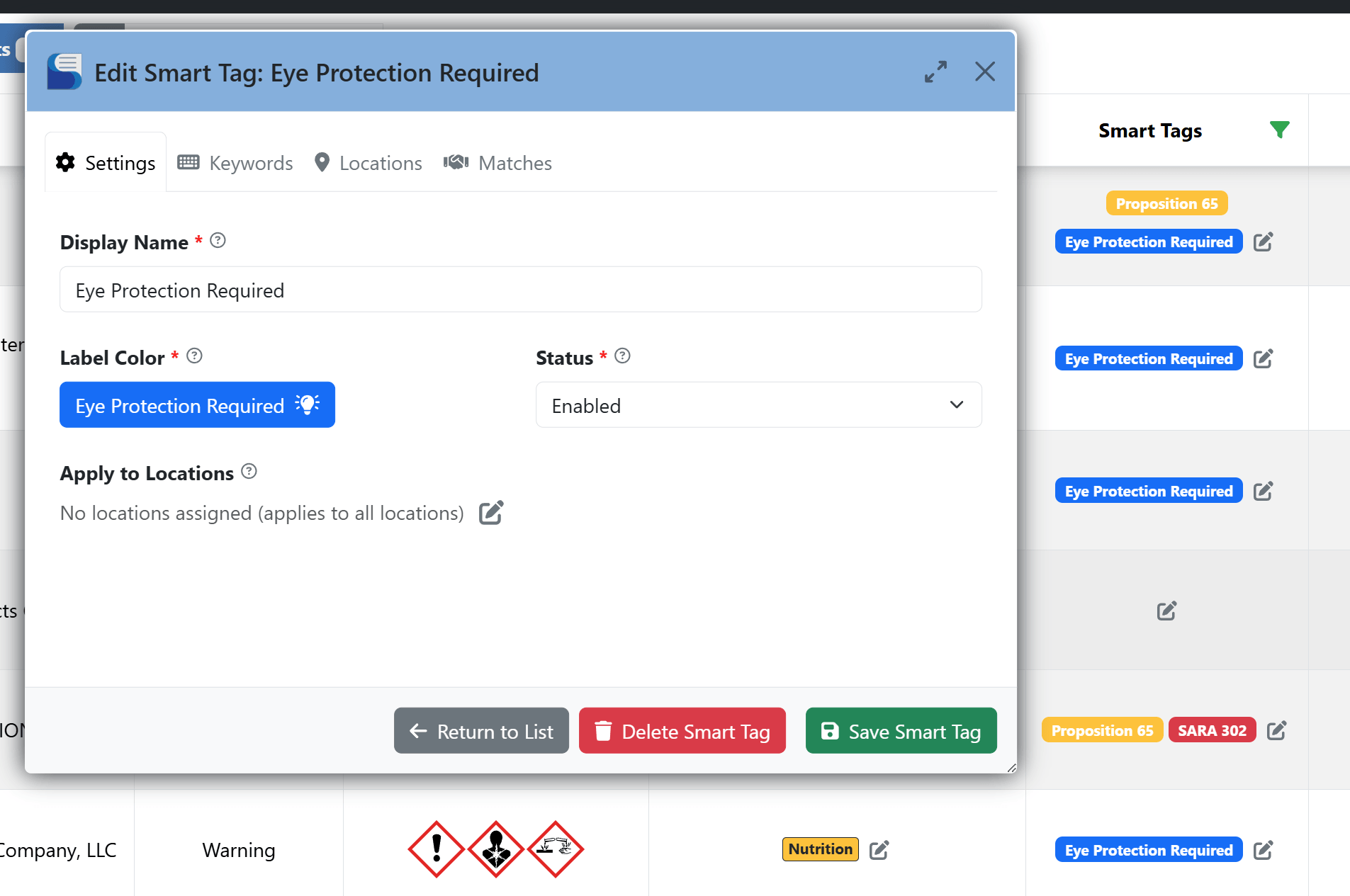
Smart Tags provide a repeatable way to group chemicals by the content of their SDS documents rather than relying only on a product name or location—and to be alerted when a new match arrives.
Create a Smart Tag with the content keywords that matter to your review, program or operational process.
Matching current documents are tagged, and the same search continues to tag future SDSs as they are loaded.
Use Smart Tag filters alongside location, pictogram and other filters to focus a broader library view. Configure email notifications to be automatically informed when a new product’s SDS meets the tag’s criteria.